Add-ons / Slash Commands
Slash Commands add-on
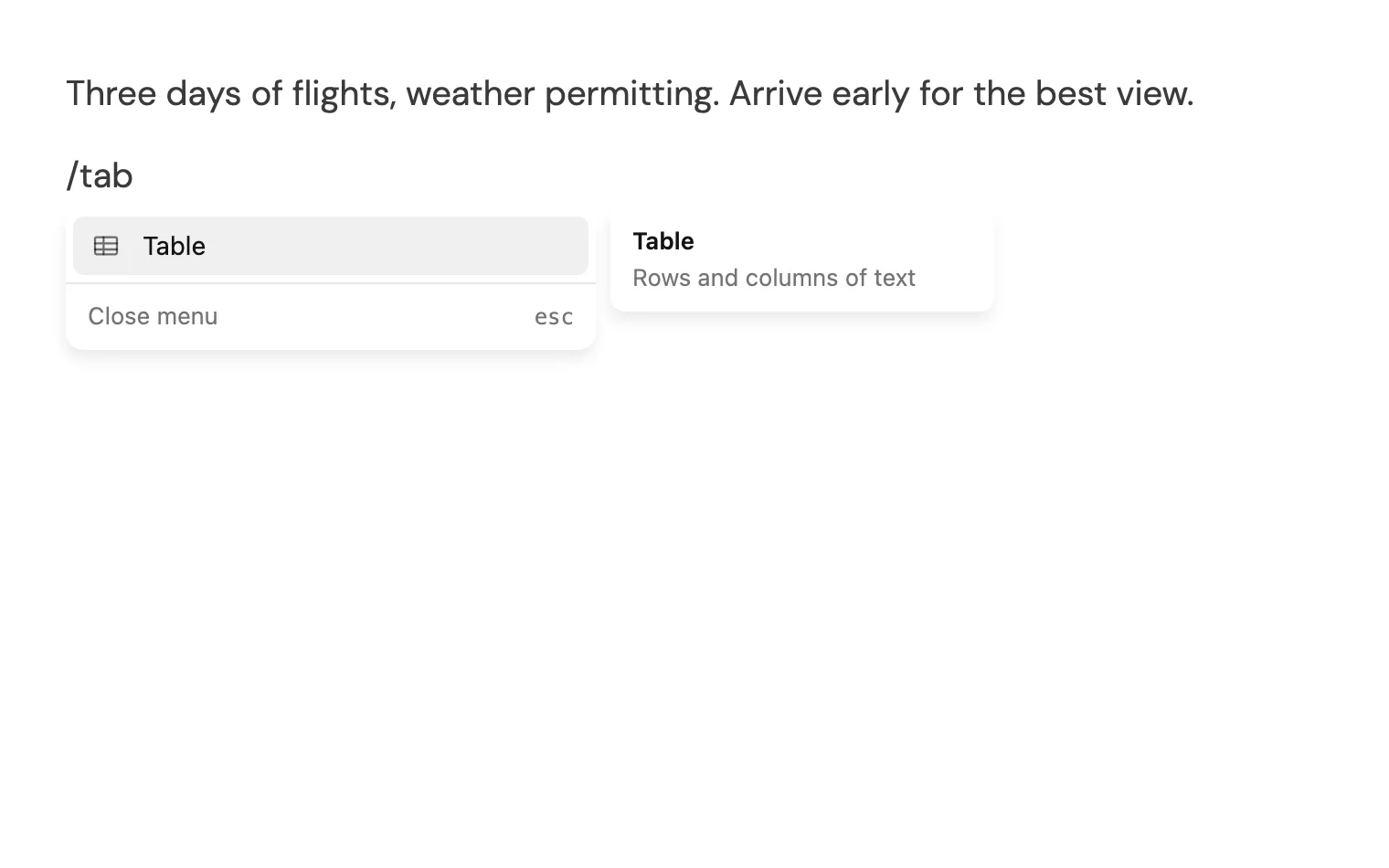
Type /, pick, keep writing.
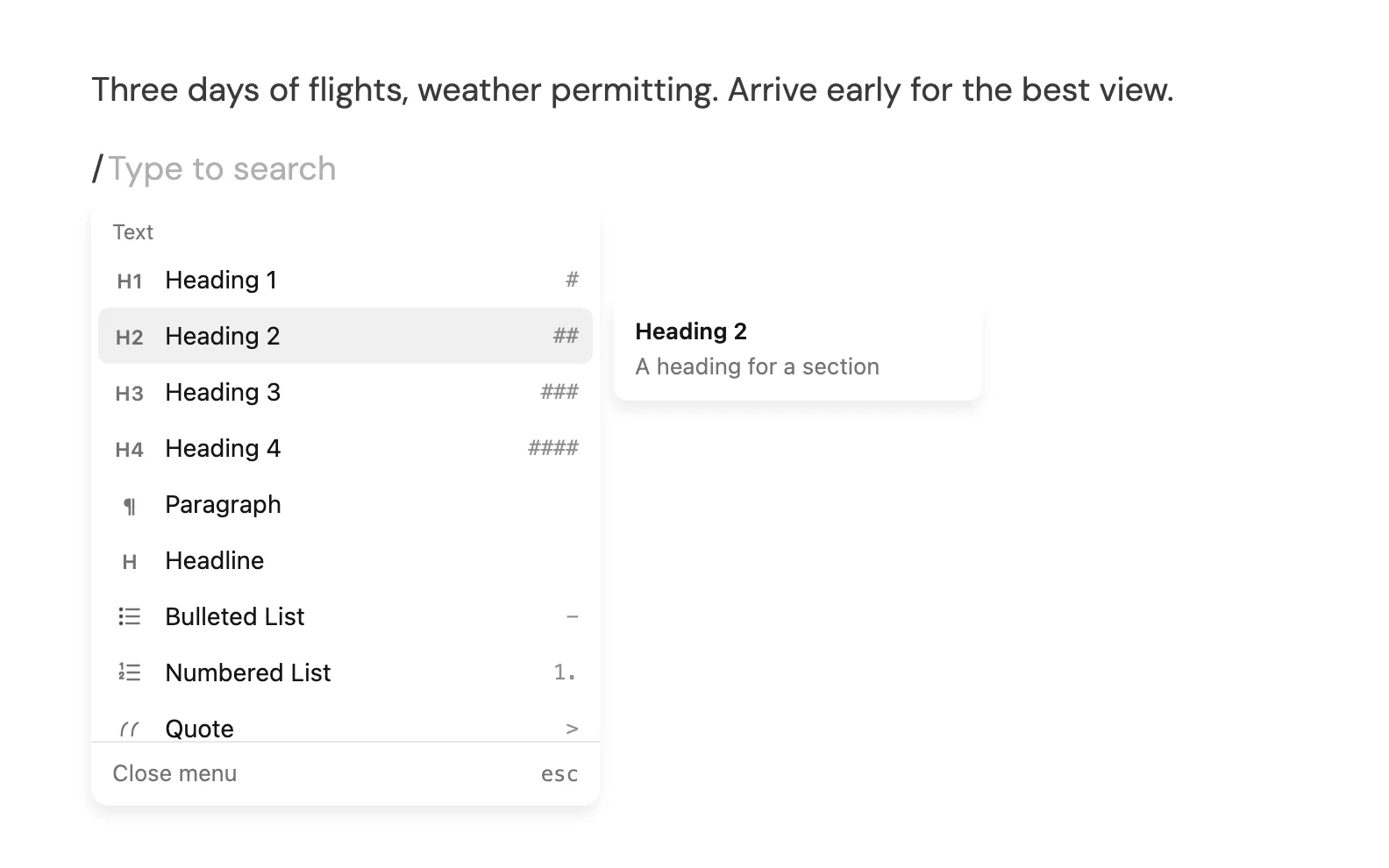
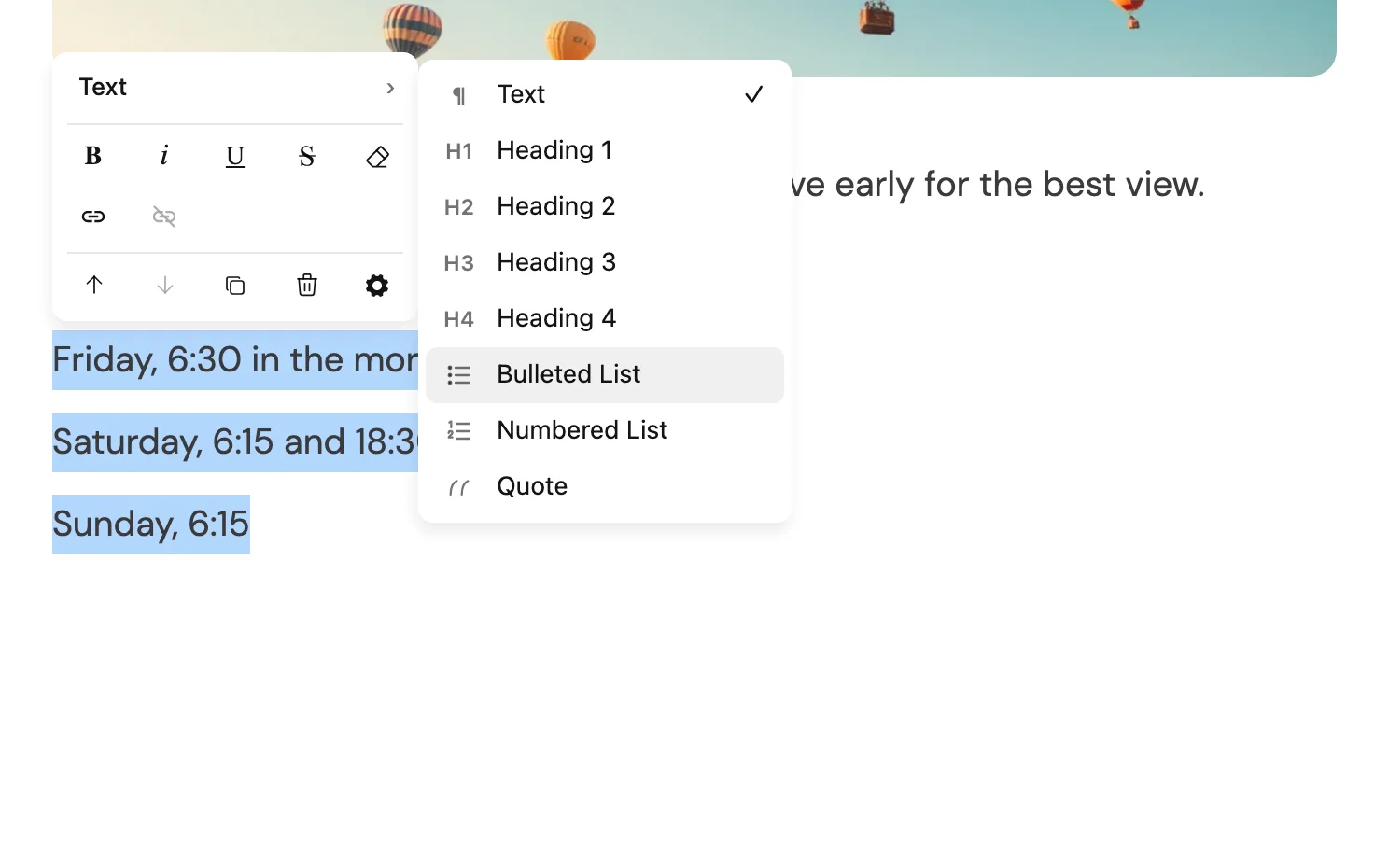
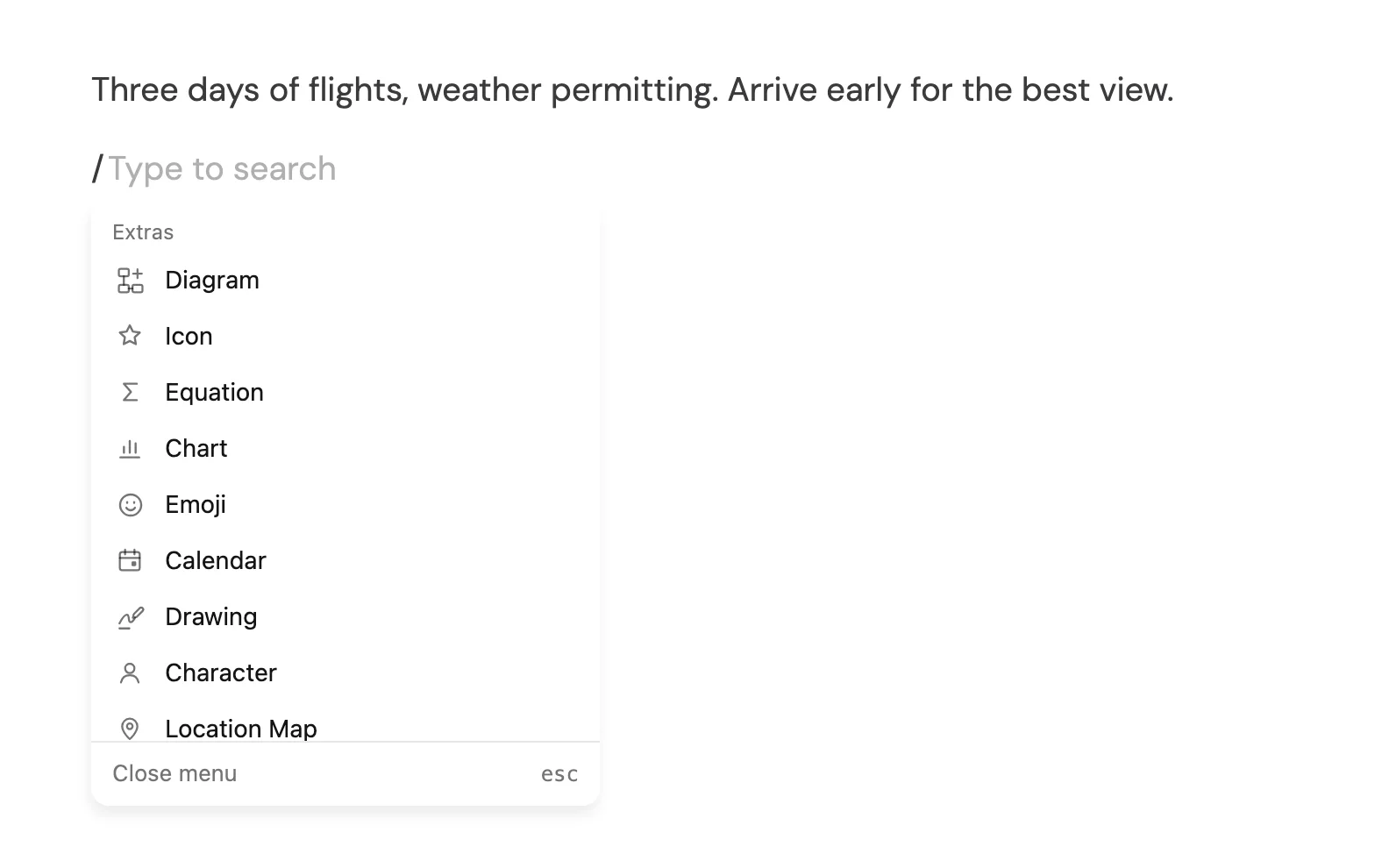
On an empty line, type a slash. A list opens under the cursor with everything the + button adds, in groups, with a short note on the highlighted item. Type a few letters to narrow it, press Enter, and the cursor is ready in the new heading, list or table. Select text and a small panel appears beside it: turn the line into a heading, a list or a quote, or move, copy or remove it. It is at its best with Quiet Editing: the toolbars go away, and you add everything from the keyboard.
$29
For ContentBuilder.js 6.0.12 and ContentBox.js 6.0.13, or newer.
One price. Use it wherever your ContentBuilder.js or ContentBox.js licence lets you use the editor, on websites or in SaaS. Source code and 1 year of updates and email support included.
Or get it in the Writing bundle for $139, or with all add-ons for $299.
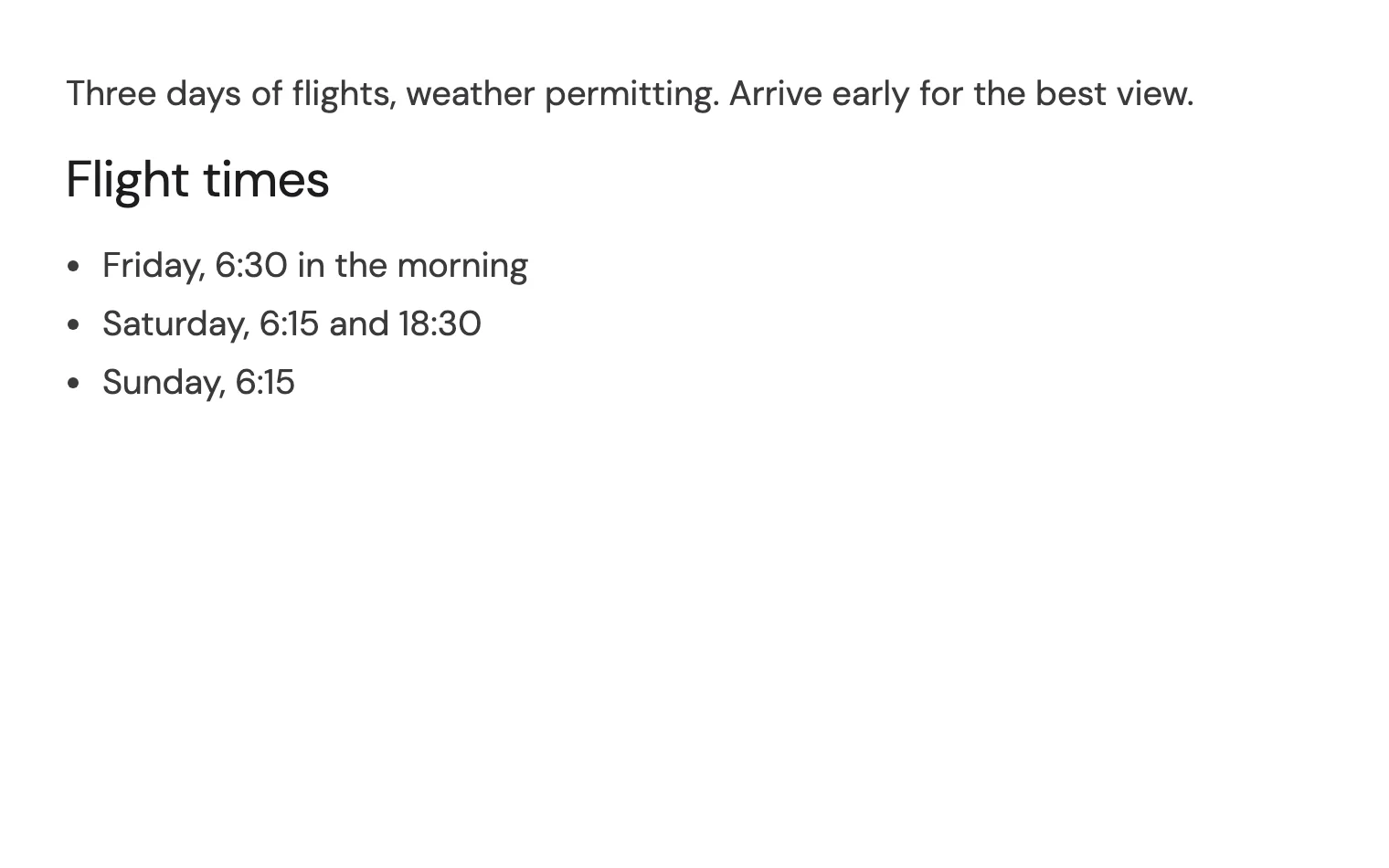
Shown with Quiet Editing, which hides the editor’s toolbars, so only the page is in view. Type /, pick with the arrow keys and Enter: a heading, then a bulleted list.
Why it is different
Everything the + button adds
Headings, lists, quote, image, button, table, icon, video, map, form and the rest, in groups (Text, Layout, Media, Buttons and forms, Code), plus More... for every ready-made block.
Other add-ons too
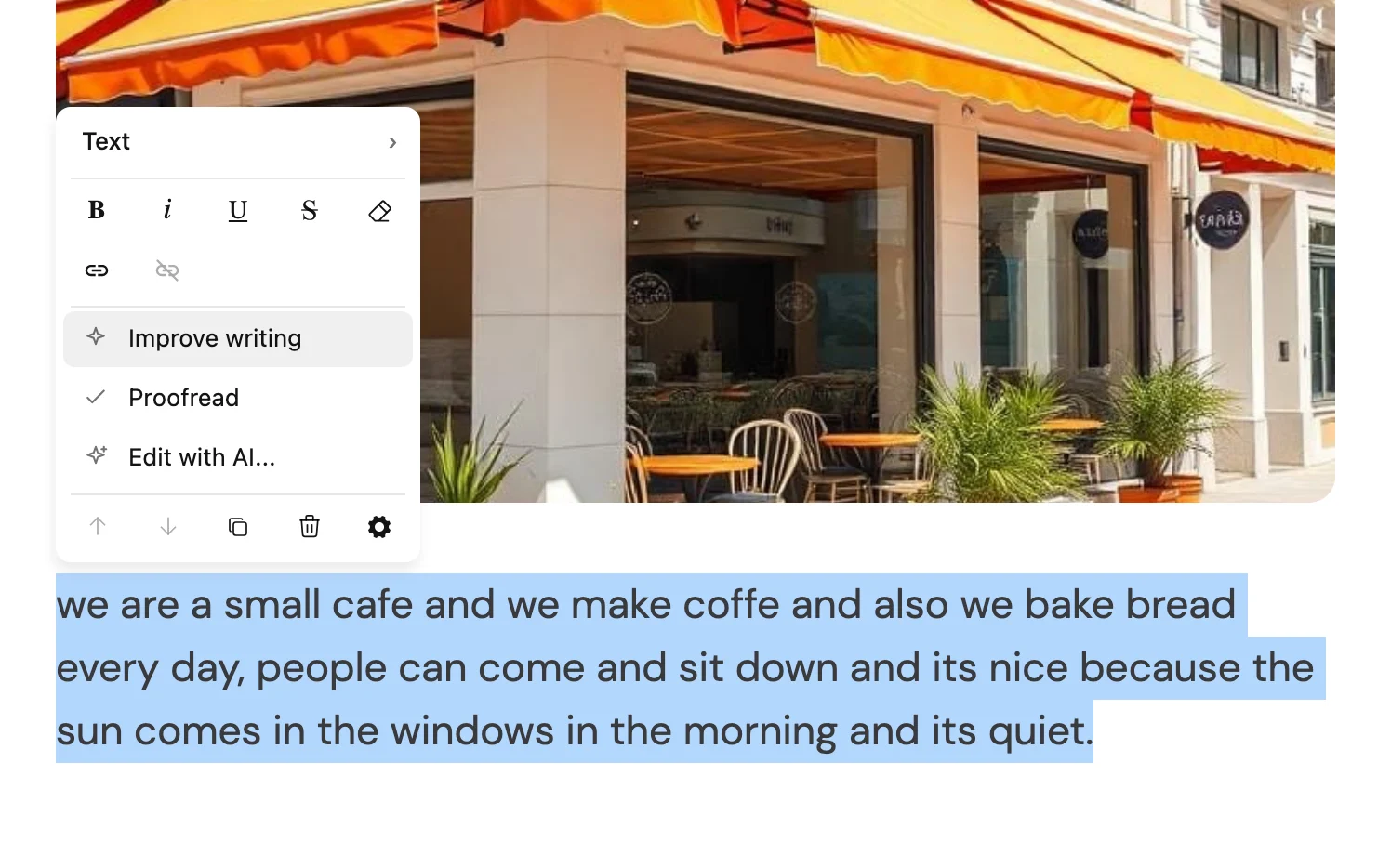
Items other add-ons put in Insert, such as Equation, Chart, Diagram or Calendar, appear in the list under Extras. With AI Writing, the panel beside selected text also has Improve writing, Proofread and Edit with AI...
Turn a line into another
Select text and a panel appears beside it: turn the line into a heading, a list or a quote, and it keeps its bold and links. Three selected lines become one list of three. Move, copy or remove lines from the same panel.
How it works
1
Empty line
Click an empty line, or press Enter at the end of a paragraph.
2
Type /
Add a few letters to narrow the list: /tab for Table, /h2 for Heading 2.
3
Enter
Press Enter or click. The cursor goes into the new text. Escape or Close menu closes the list.
Screenshots
Turn it on
Copy the add-on next to the editor files and add it to the addons option. Works with a script tag or a bundler (React, Next.js, Vue, Vite).
const builder = new ContentBuilder({
    container: '.container',
    addons: [ContentBuilderAddons.SlashCommands()],
});
Questions
- Does a slash in my text open the list?
- No. It opens only when you type / on an empty line.
- Can I insert images from my site’s files?
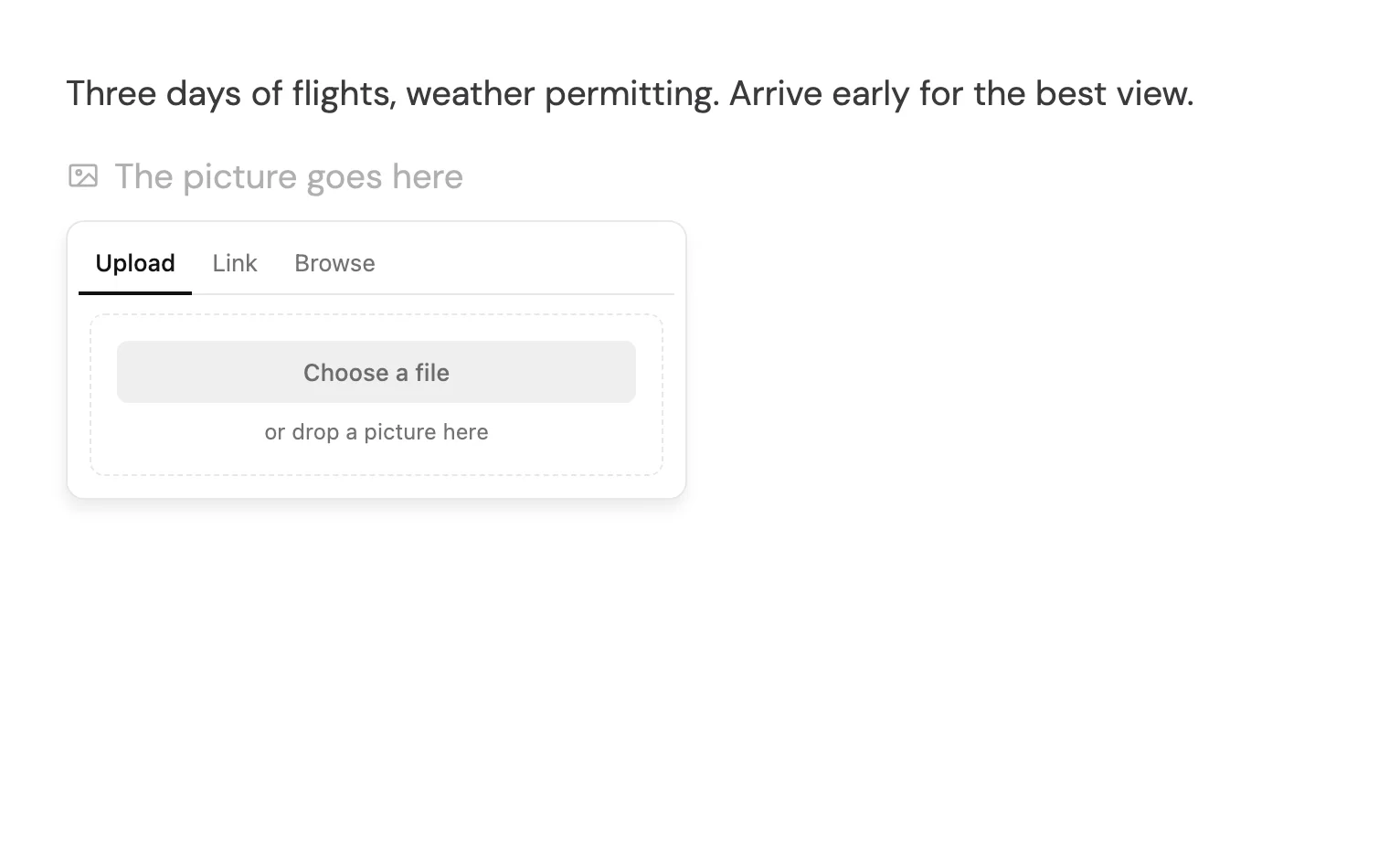
- Yes. Image opens a small panel under the line: Browse your site’s images (when your site has a file picker), Upload a file or Link to a picture’s address.
- Is there a faster way for headings and lists?
- Yes. At the start of a line, type # to #### for a heading, - for a bulleted list, 1. for a numbered list, > for a quote or --- for a divider. The list shows these beside each item.
- Can the list be translated?
- Yes, with the lang option. Other add-ons’ items use their own translations.
- Does it work with Quiet Editing?
- Yes, and they are made for each other. With Quiet Editing on, the toolbars are hidden and the panel beside selected text also has Bold, Italic, Underline, Strikethrough, Clear formatting and links.
- Does it work with AI Writing?
- Yes. With the AI Writing add-on installed, the panel beside selected text also has Improve writing, Proofread and Edit with AI... for just the selected words. It needs the next update of ContentBuilder.js and ContentBox.js; with an older editor, everything else works as before.
- Can I use it in my SaaS or an app I sell?
- Yes, with a Pro or Super licence of ContentBuilder.js or ContentBox.js.
- Is the source code included?
- Yes. Every add-on comes with its source code, whichever licence you have, so you can change it for your project.
- How long are updates and support?
- 1 year of free updates and email support included. Updating is optional.