Add-ons / Typing Shortcuts
Typing Shortcuts add-on
Emoji, dates and symbols, without leaving the keyboard.
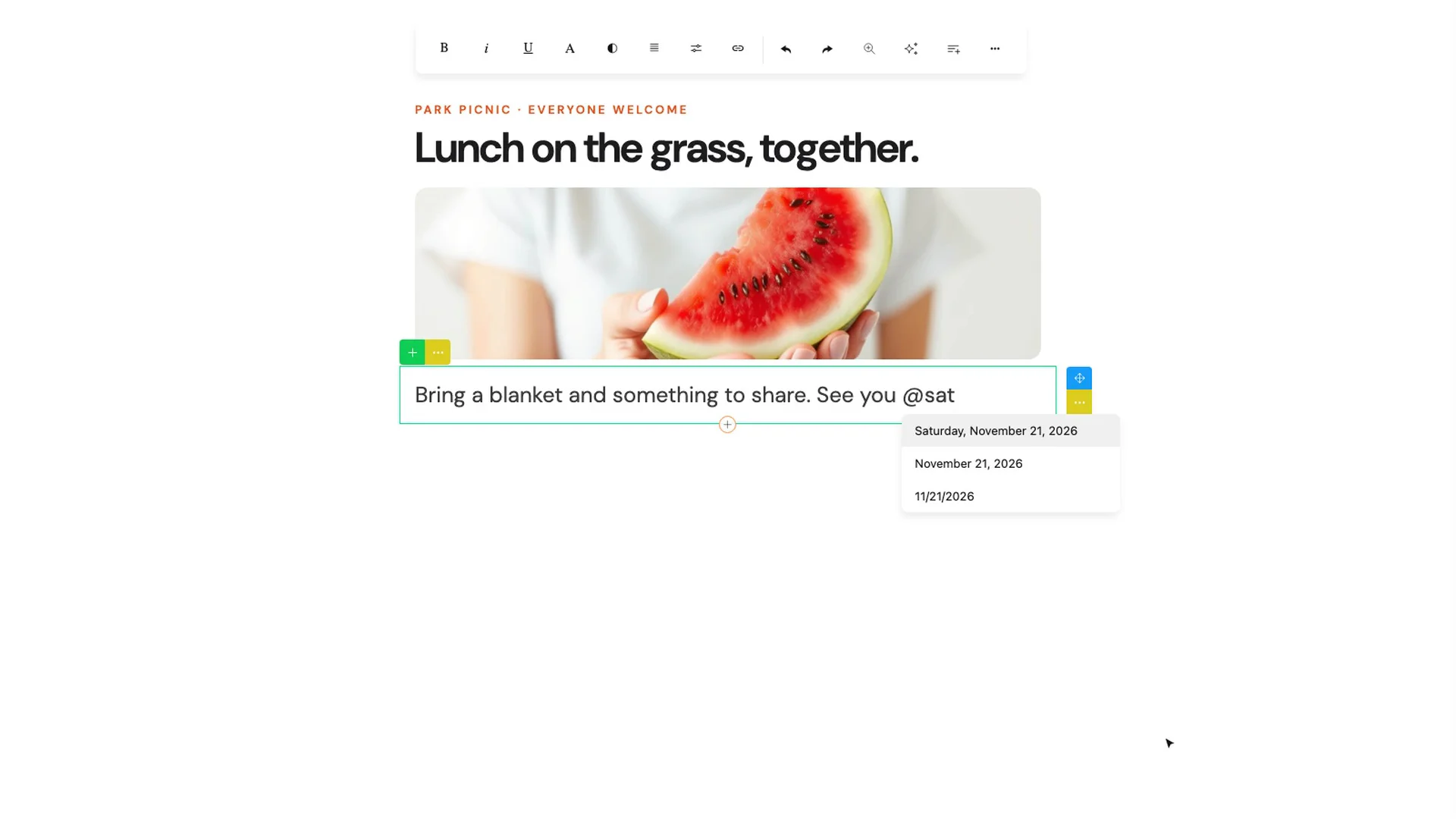
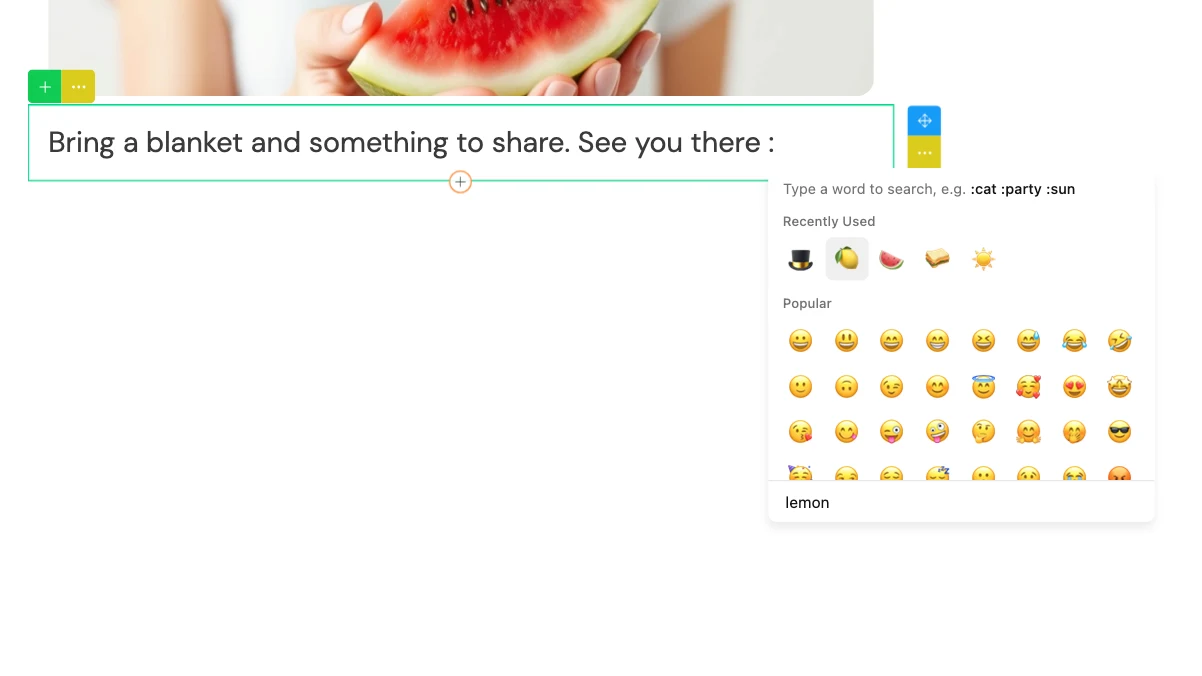
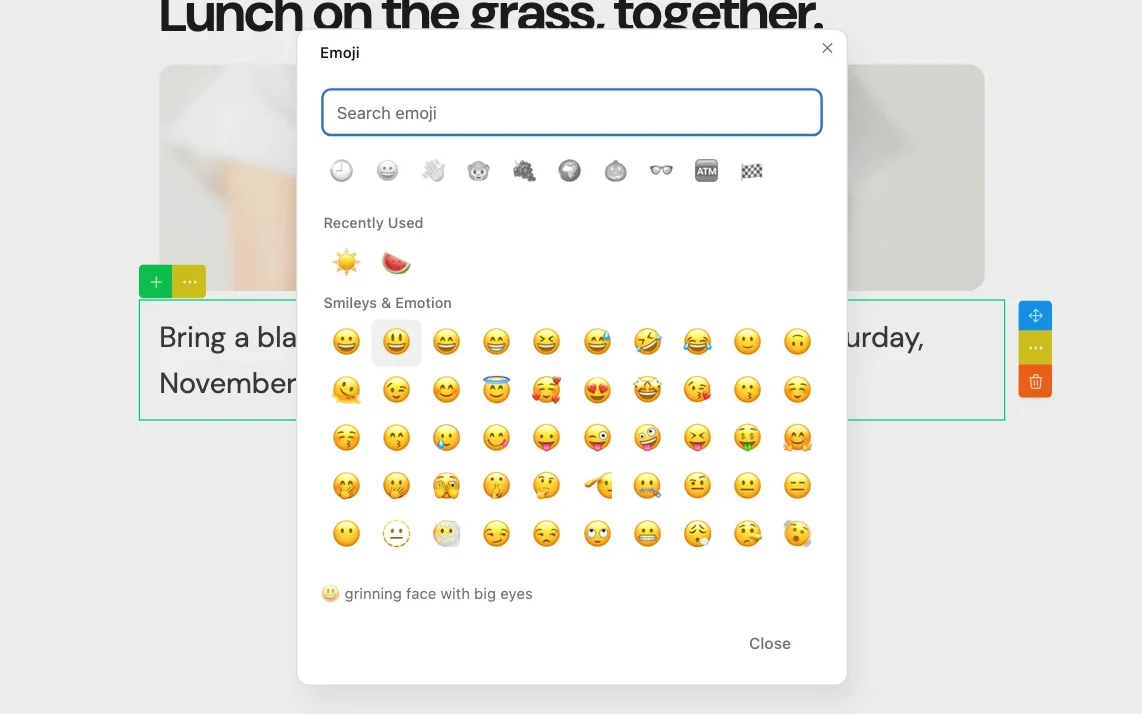
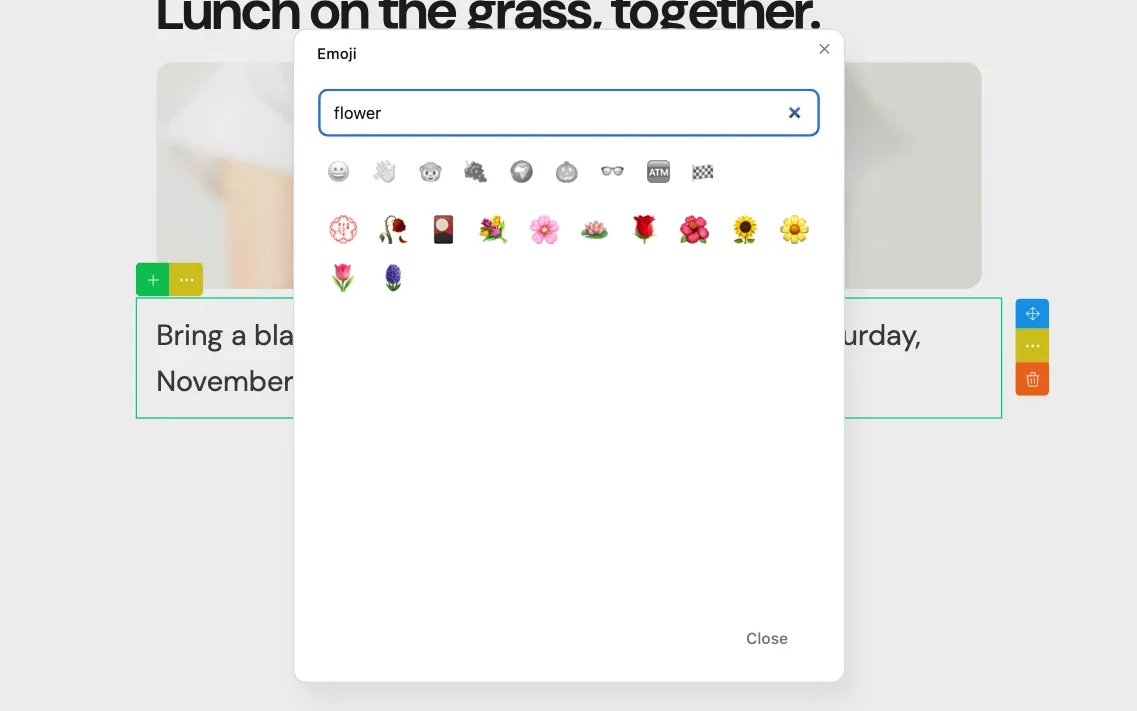
Type a colon and a word for an emoji or an @ for a date: a short list appears under the text, and Enter puts your choice in the page. A colon alone opens an emoji grid, like a phone’s emoji keyboard. :) becomes 🙂, -> becomes → and (c) becomes ©, and your own words become the text you set. Everything goes in as plain text.
Free
For ContentBuilder.js 6.0.12 and ContentBox.js 6.0.13, or newer.
Free. Use it wherever your ContentBuilder.js or ContentBox.js licence lets you use the editor, on websites or in SaaS. Source code included.
@sat becomes a date, a colon picks an emoji from the grid, park becomes an address and -> an arrow.
Why it is different
Dates in plain words
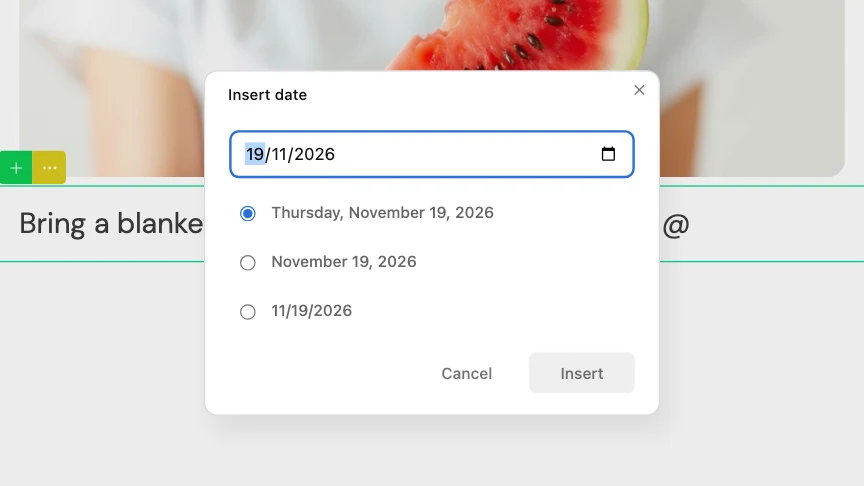
@fri, @next week, @in 3 days or @dec 24. Each date comes in three formats, and the one you pick is remembered.
26 languages
Emoji names and dates follow the page language. English words work as well, in any language.
Symbols and your own shortcuts
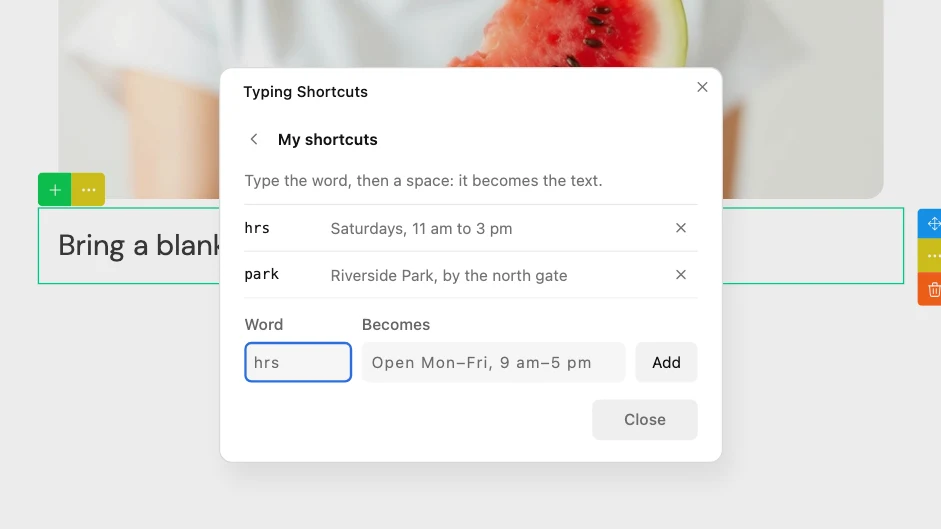
-> becomes →, 1/2 becomes ½, (c) becomes ©. Add your own words too: hrs becomes your opening hours, as you type.
How it works
1
Type
:bread for an emoji, @fri for a date, or :) and a space for 🙂. -> and a space gives →.
2
Choose
The arrow keys move through the list or the grid, Enter or Tab inserts.
3
Keep writing
The emoji or date goes in as plain text. Escape closes the list.
Screenshots
Turn it on
Copy the add-on next to the editor files and add it to the addons option. Works with a script tag or a bundler (React, Next.js, Vue, Vite).
const builder = new ContentBuilder({
    container: '.container',
    addons: [ContentBuilderAddons.TypingShortcuts()],
});
Questions
- Can each part be turned off?
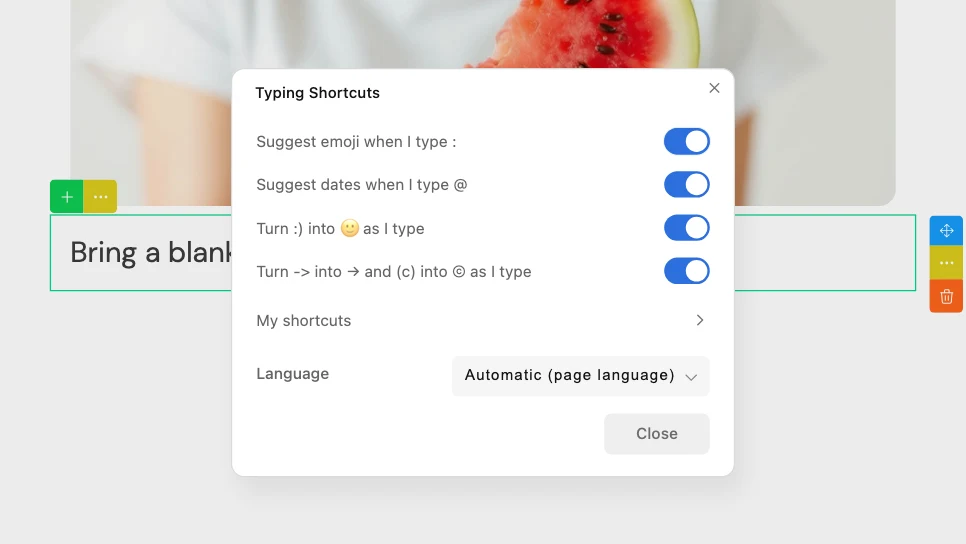
- Yes. Tools › Typing Shortcuts has a switch for emoji, dates, emoticons and symbols. You can also set the starting state with the emoji, dates, emoticons and symbols options.
- How do I keep what I typed, such as :) or ->?
- Press undo (Ctrl+Z or Cmd+Z) right after it changes.
- Where are my own shortcuts kept?
- In the browser you added them in. Open Tools › Typing Shortcuts › My shortcuts to add, change or remove them.
- Can my site add its own symbols?
- Yes, with the symbolRules option, for example (p) for ℗. It can also remove a built-in one.
- I write in a different language than the page. Is that possible?
- Yes. Choose your language in Tools › Typing Shortcuts. The choice is remembered in the browser.
- Can I use it in my SaaS or an app I sell?
- Yes, with a Pro or Super licence of ContentBuilder.js or ContentBox.js.
- Is the source code included?
- Yes. Every add-on comes with its source code, whichever licence you have, so you can change it for your project.
- How long are updates and support?
- 1 year of free updates and email support included. Updating is optional.