Add-ons / Icon Library
Icon Library add-on
The right icon, in the page's own color.
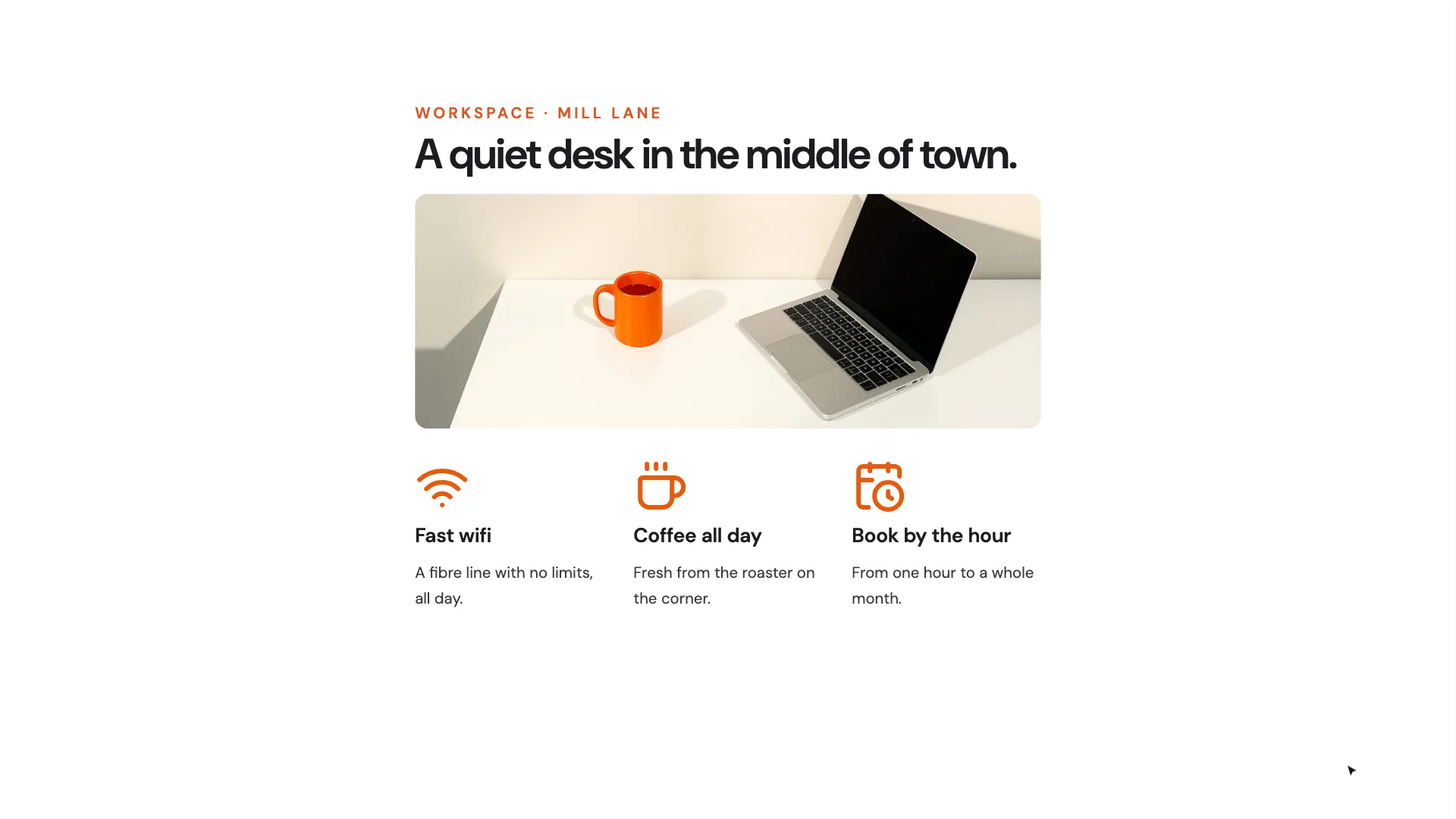
A row of features or services looks finished with an icon above each heading. Finding one usually means another website, a download and an upload, and then it never quite matches the text. With this add-on you search ten icon sets from inside the editor, and the icon takes the size and color of the text it sits in.
Free
For ContentBuilder.js 6.0.12 and ContentBox.js 6.0.13, or newer.
Free. Use it wherever your ContentBuilder.js or ContentBox.js licence lets you use the editor, on websites or in SaaS. Source code included.
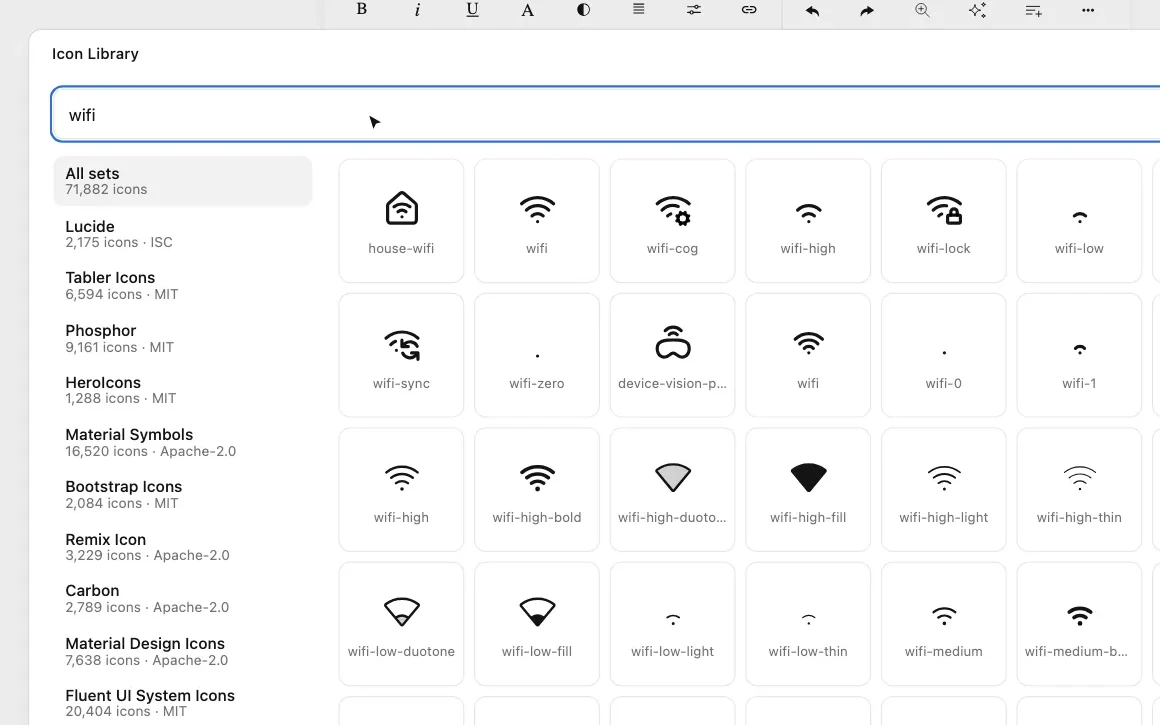
Search, click, done: the icon takes the color and size of its line.
Why it is different
Ten sets, one search
Lucide, Tabler, Phosphor, Heroicons, Material Symbols, Bootstrap Icons, Remix Icon, Carbon, Material Design Icons and Fluent UI. Free for commercial use, no credit needed.
Matches the text
An icon takes the size and color of the text around it. Change the font size or color later and the icon follows.
Nothing extra to load
Each icon is copied into the page as an SVG drawing, so a published page loads no icon font and no icon files.
How it works
1
Click where the icon goes
Put the cursor in the text and choose Icon in the Insert menu.
2
Search or browse
Type a word to search every set at once, or pick a set on the left to browse it.
3
Click an icon
It goes in at the cursor. To swap it later, click it and choose Change Icon; the new one keeps the size and color.
Screenshots
Turn it on
Copy the add-on next to the editor files and add it to the addons option. Works with a script tag or a bundler (React, Next.js, Vue, Vite).
const builder = new ContentBuilder({
    container: '.container',
    addons: [ContentBuilderAddons.IconLibrary()],
});
Questions
- Can I use the icons on commercial sites?
- Yes. Every set is under the MIT, ISC or Apache 2.0 licence: free for commercial use, with no credit needed.
- Where do the icons come from?
- While you browse, each set loads from the jsDelivr CDN, only when its icons come into view. To serve them from your own server instead, a script copies the sets (about 40 MB) and the iconPath option points to them.
- Can I remove or replace an icon?
- Yes. Click it and press Delete, or choose Change Icon to pick another. One Undo also takes out an icon you just inserted.
- Does it replace the editor’s built-in icons?
- Yes. Icon in the Insert menu and in the + panel opens the library, and any icon on the page, also one from a template, can be changed from the library, keeping its size and color. To keep the built-in icons as well, set the replace option to false.
- Can I use it in my SaaS or an app I sell?
- Yes, with a Pro or Super licence of ContentBuilder.js or ContentBox.js.
- Is the source code included?
- Yes. Every add-on comes with its source code, whichever licence you have, so you can change it for your project.
- How long are updates and support?
- 1 year of free updates and email support included. Updating is optional.