Add-ons / Device Scenes
Device Scenes add-on
Your screenshot on a device, turned the way you want.
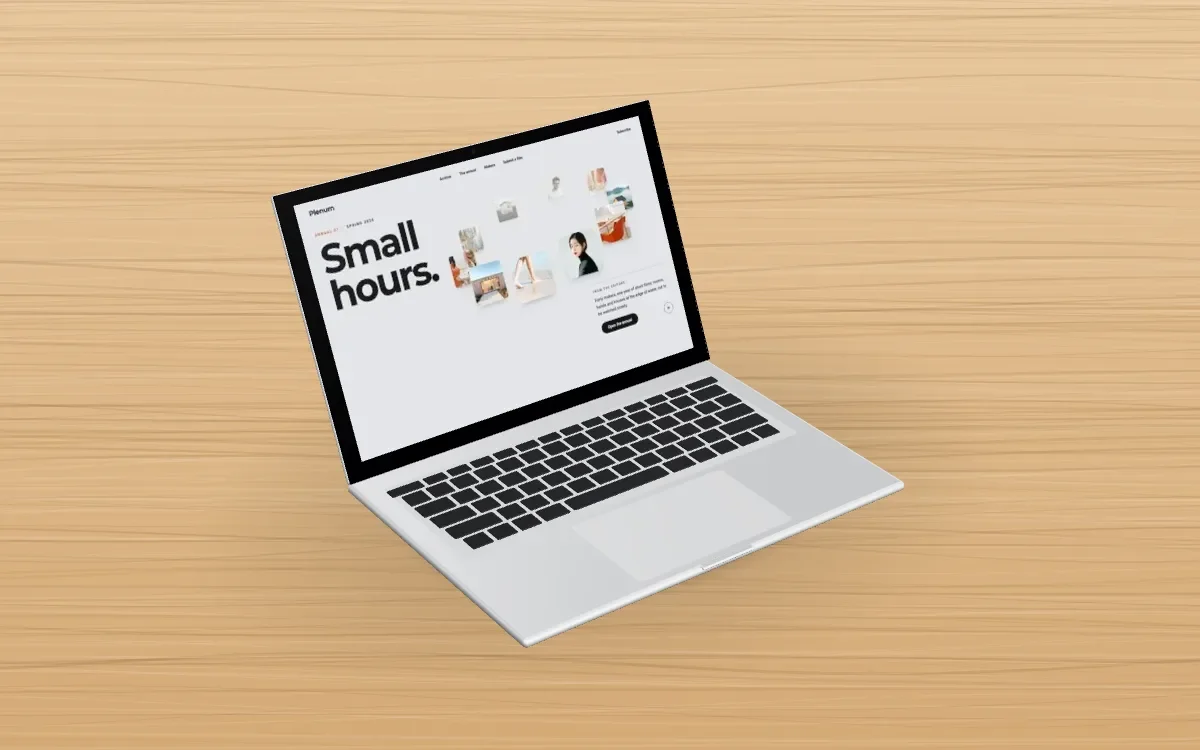
Showing a website or an app on a page usually means a mockup file, a design program and some patience to fit the screenshot onto the screen. With this add-on you add a screenshot and it appears on a laptop, a desktop computer, a tablet, a phone or a browser window, drawn in 3D. Pick a scene, drag the preview to turn the device, and insert. The page gets one image, so there is nothing extra to load. Double-click it later to change anything.
$29
For ContentBuilder.js 6.0.12 and ContentBox.js 6.0.13, or newer.
One price. Use it wherever your ContentBuilder.js or ContentBox.js licence lets you use the editor, on websites or in SaaS. Source code and 1 year of updates and email support included.
Or get it in the Visual Content bundle for $179, or with all add-ons for $299.
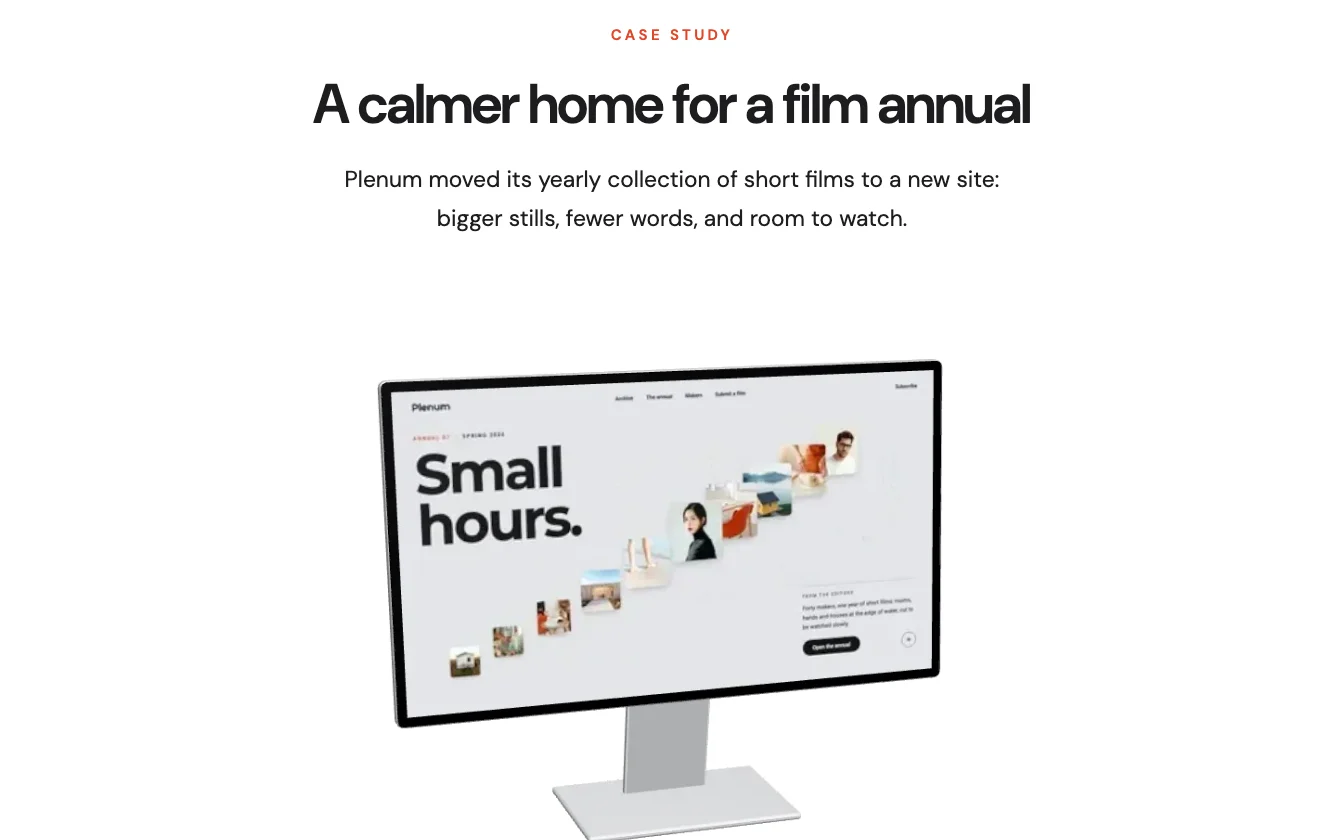
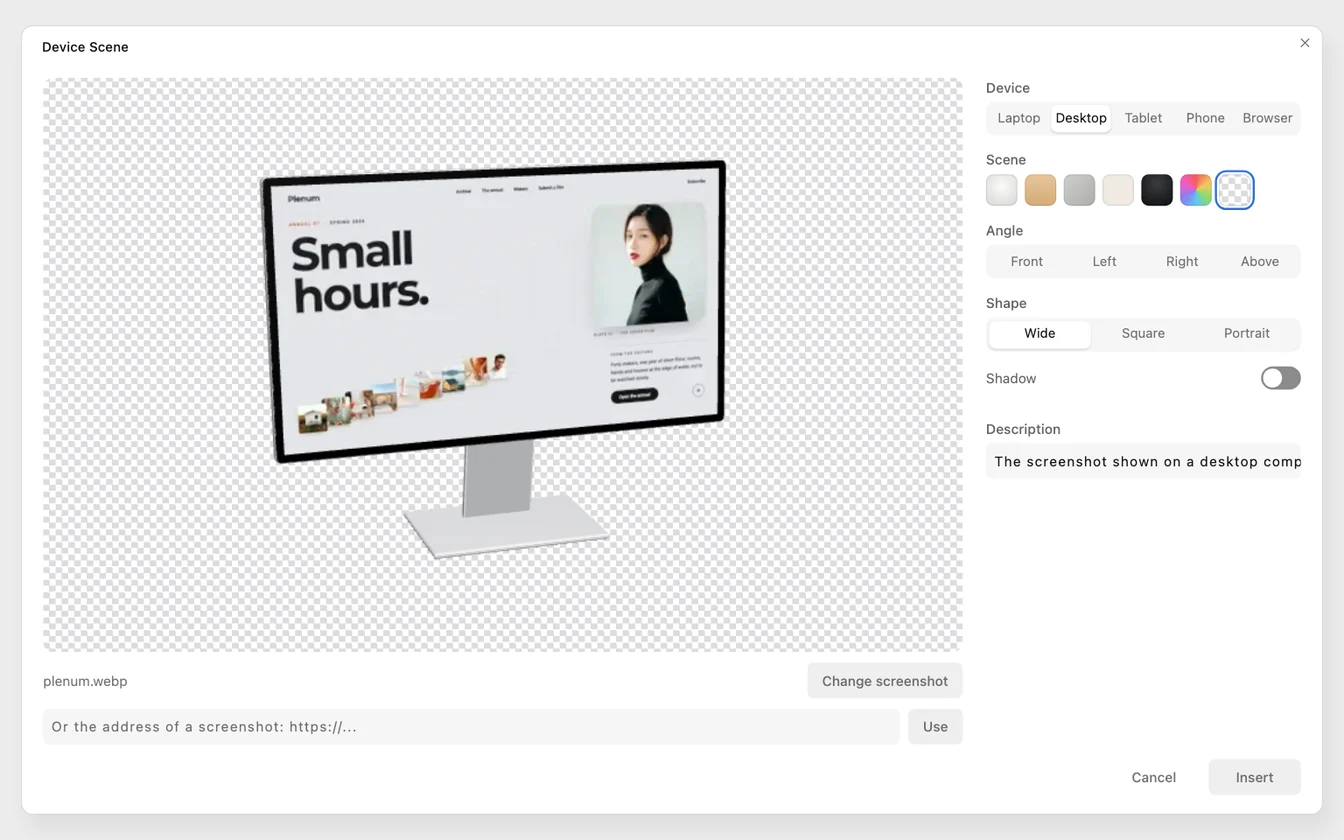
Add a screenshot by its address, choose Desktop with no background and no shadow, drag the preview to turn it, and insert it under the heading.
Why it is different
Five devices
A laptop, a desktop computer, a tablet, a phone and a browser window, each with your screenshot fitted to its screen.
The view you want
Front, Left, Right or Above in one click, or drag the preview to turn the device and see it from the side or from above. Studio, wood, concrete, paper, dark, a color you choose or no background, with or without a shadow.
Moving screenshots too
An animated screenshot (an animated WebP, GIF or PNG) makes an animated scene, so the page can show your site in use. It is still one image: no video and no script.
How it works
1
Open Device Scene
Click on an empty line and choose Device Scene in the Insert menu.
2
Add a screenshot
Drop it on the preview, paste it, choose a file or type its address.
3
Turn it and insert
Device, scene, angle, shape and shadow; drag the preview to turn it, then Insert.
Screenshots
Turn it on
Copy the add-on next to the editor files and add it to the addons option. Works with a script tag or a bundler (React, Next.js, Vue, Vite).
const builder = new ContentBuilder({
    container: '.container',
    addons: [ContentBuilderAddons.DeviceScenes()],
});
Questions
- Which screenshot works best?
- One made at the device’s width: a phone-sized screenshot for Phone, a full window for Laptop or Desktop. The top of the screenshot shows first, so a long page screenshot works too.
- Can I change it later?
- Yes. Double-click it, or click it and choose Edit Device Scene. Every choice can be changed, the device too, because the screenshot is uploaded with the scene.
- Does it slow the page down?
- No. The page gets one image, at most 1200 pixels wide. The 3D drawing loads only in the editor, when the window opens.
- Does it work on any page color?
- Yes. With no background the image keeps only the device, and its shadow if you want one, so it sits on any color.
- Can I use it in my SaaS or an app I sell?
- Yes, with a Pro or Super licence of ContentBuilder.js or ContentBox.js.
- Is the source code included?
- Yes. Every add-on comes with its source code, whichever licence you have, so you can change it for your project.
- How long are updates and support?
- 1 year of free updates and email support included. Updating is optional.