
ContentBox.js · Guide
Using ContentBox.js in a PHP Project
ContentBox.js is a JavaScript library for designing and building complete web pages with simple drag and drop. In this guide we add it to a plain PHP site: no framework and no Composer. First we embed the editor, then we add saving, uploads and a page that shows the saved page to visitors.
ContentBox comes in two parts:
ContentBox
The editor, used on the page where pages are built.
ContentBox Runtime
Renders the saved page on your site. It makes interactive blocks (sliders, counters, charts, accordions and more) work, both while editing and when viewing.
In this guide
- Set up the folder
- Embed the editor
- Add saving and uploads
- Show the page to visitors
- Try it
Step 1
Set up the folder
Create a folder for your site. The files you need are in the ContentBox.js ZIP package, which you can download from your user area. From the package's public/ folder, copy these into your folder:
my-site/
├── contentbox/      # the editor
├── contentbuilder/  # the editor's base styles
├── runtime/         # the runtime
├── assets/          # sections, snippets, fonts, plugins
├── blank.html       # the page you edit, shown inside the editor
└── preview.html     # Page Preview
Start PHP's built-in server in the folder:
cd my-site
php -S localhost:8000
(Or put the folder on any PHP hosting, or in XAMPP or MAMP.)
Step 2
Embed the editor
Create edit.php. For now it is plain HTML; we add PHP in the next step. ContentBox adds its own interface, so the body has only the scripts:
<!DOCTYPE html>
<html lang="en">
<head>
    <meta charset="utf-8">
    <meta name="viewport" content="width=device-width, initial-scale=1">
    <title>Edit</title>
    <link href="contentbuilder/contentbuilder.css" rel="stylesheet">
    <link href="contentbox/contentbox.css" rel="stylesheet">
</head>
<body>
    <script src="contentbox/contentbox.min.js"></script>
    <script>
        // Create the editor
        const builder = new ContentBox({
            controlPanel: true,
            iframeSrc: 'blank.html', // the page you edit
            snippetUrl: 'assets/minimalist-blocks/content-plugins.js', // the blocks users can drag in
        });

        // Load the page to edit
        builder.loadHtml(`
            <div class="is-section is-box type-system-ui">
                <div class="is-overlay"></div>
                <div class="is-container v2 leading-14 size-18">
                    <div class="row">
                        <div class="column">
                            <h1>Hello World</h1>
                            <p>Start editing your page here.</p>
                        </div>
                    </div>
                </div>
            </div>`);
    </script>
</body>
</html>
Keep the two stylesheets in this order: contentbuilder.css first, then contentbox.css.
The page you edit is shown inside the editor from blank.html. It already starts the runtime, so interactive blocks work while you edit.
Open http://localhost:8000/edit.php. You have a working editor: click the text to edit it, add sections with the + button on the left, and drag in blocks from the Blocks button below it, including interactive ones like a countdown or a chart.
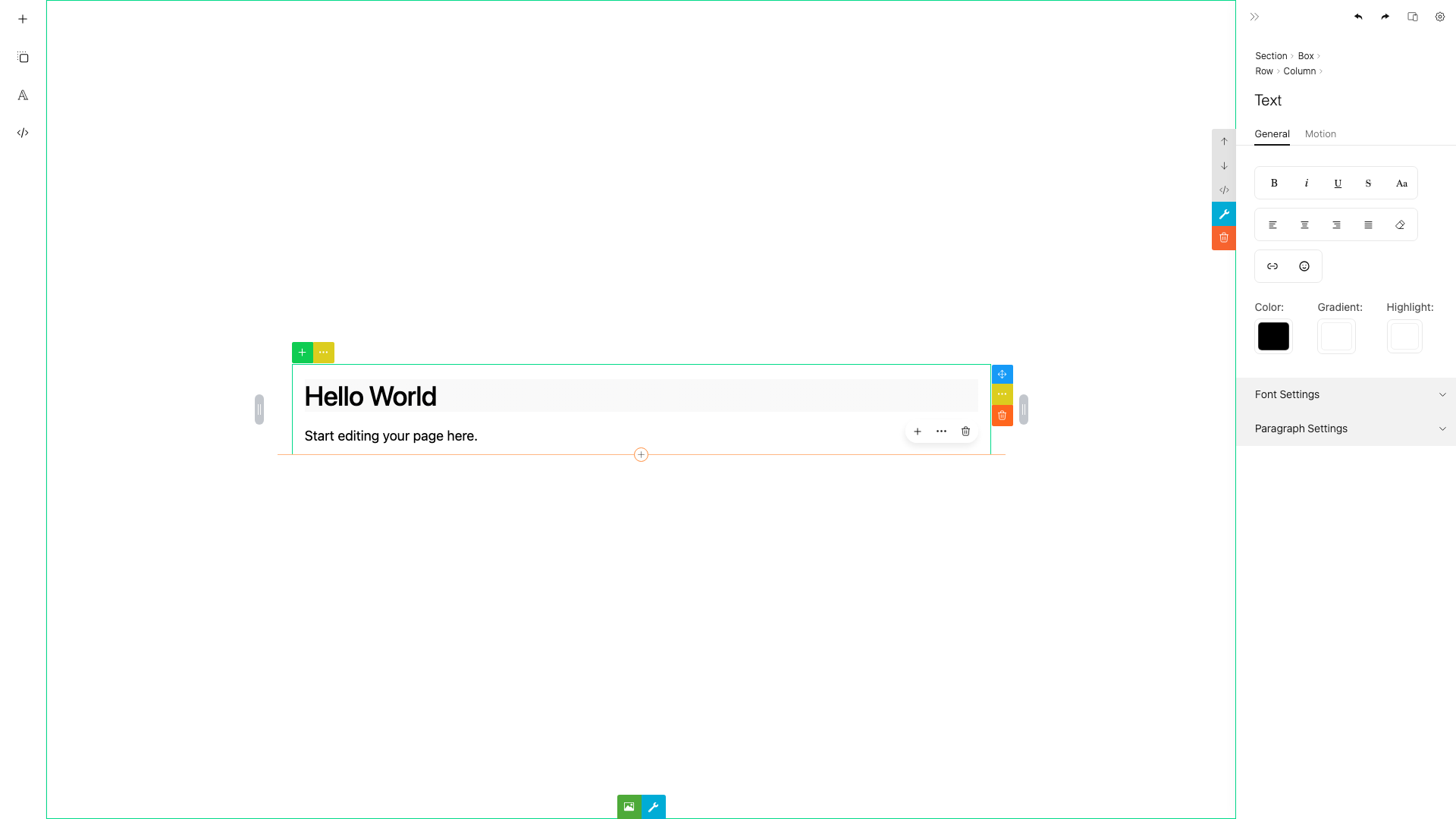
The editor after step 2. Click the text to edit it, add sections with + and blocks from the Blocks panel.
Step 3
Add saving and uploads
Now let's add saving and uploads. The page is saved to a file, so you can run it without a database.
A page has three parts: the content (html), the styles used on the page (mainCss) and the styles of each section (sectionCss). We save all three.
Create save.php. It saves the page to data/page.json:
<?php
// Saves the page to data/page.json
$data = json_decode(file_get_contents('php://input'), true);
if (!isset($data['html'])) {
    http_response_code(400);
    exit;
}

$page = [
    'html' => $data['html'],
    'mainCss' => $data['mainCss'] ?? '',
    'sectionCss' => $data['sectionCss'] ?? '',
];
if (!is_dir(__DIR__ . '/data')) mkdir(__DIR__ . '/data');
file_put_contents(__DIR__ . '/data/page.json', json_encode($page));

header('Content-Type: application/json');
echo json_encode(['ok' => true]);
Create upload.php. It saves an uploaded file in uploads/ and returns its URL:
<?php
// Saves an uploaded file in uploads/ and returns its URL
$allowed = ['jpg', 'jpeg', 'png', 'gif', 'webp', 'mp4', 'webm', 'mp3', 'wav', 'pdf'];

$file = $_FILES['file'] ?? null;
$ext = strtolower(pathinfo($file['name'] ?? '', PATHINFO_EXTENSION));
if (!$file || $file['error'] !== UPLOAD_ERR_OK || !in_array($ext, $allowed)) {
    http_response_code(400);
    exit;
}

// A new random name, so uploads never overwrite each other
$name = bin2hex(random_bytes(8)) . '.' . $ext;
if (!is_dir(__DIR__ . '/uploads')) mkdir(__DIR__ . '/uploads');
move_uploaded_file($file['tmp_name'], __DIR__ . '/uploads/' . $name);

header('Content-Type: application/json');
echo json_encode(['url' => 'uploads/' . $name]); // ContentBox needs { url }
Replace edit.php:
<?php
// The saved page: content, styles used on the page, styles of each section
$file = __DIR__ . '/data/page.json';
$page = file_exists($file) ? json_decode(file_get_contents($file), true) : [];
?>
<!DOCTYPE html>
<html lang="en">
<head>
    <meta charset="utf-8">
    <meta name="viewport" content="width=device-width, initial-scale=1">
    <title>Edit</title>
    <link href="contentbuilder/contentbuilder.css" rel="stylesheet">
    <link href="contentbox/contentbox.css" rel="stylesheet">
</head>
<body>
    <div style="position: fixed; top: 0; left: 0; right: 0; height: 55px; z-index: 10;
                display: flex; align-items: center; justify-content: flex-end; gap: 8px;
                padding: 0 20px; background: #fff; border-bottom: 1px solid #eee">
        <button id="btnPreview">Preview</button>
        <button id="btnView">View page</button>
        <button id="btnSave">Save</button>
    </div>

    <script src="contentbox/contentbox.min.js"></script>
    <script>
        const DEFAULT_CONTENT = `
            <div class="is-section is-box type-system-ui">
                <div class="is-overlay"></div>
                <div class="is-container v2 leading-14 size-18">
                    <div class="row">
                        <div class="column">
                            <h1>Hello World</h1>
                            <p>Start editing your page here.</p>
                        </div>
                    </div>
                </div>
            </div>`;

        // Sends the file to upload.php, which returns { url }
        async function upload(file) {
            const formData = new FormData();
            formData.append('file', file);
            const response = await fetch('upload.php', { method: 'POST', body: formData });
            return response.json();
        }

        // Create the editor
        const builder = new ContentBox({
            controlPanel: true,
            iframeSrc: 'blank.html', // the page you edit
            snippetUrl: 'assets/minimalist-blocks/content-plugins.js', // the blocks users can drag in
            topSpace: true,          // leaves room at the top for our toolbar
            upload,                  // handles image, video, audio and file uploads
        });

        // Load the saved page, or the default the first time
        const page = <?= json_encode((object) $page, JSON_HEX_TAG | JSON_HEX_AMP) ?>;
        builder.loadHtml(page.html || DEFAULT_CONTENT);
        builder.loadStyles(page.mainCss || '', page.sectionCss || '');

        // Sends the page to save.php
        async function save() {
            await fetch('save.php', {
                method: 'POST',
                headers: { 'Content-Type': 'application/json' },
                body: JSON.stringify({
                    html: builder.html(),
                    mainCss: builder.mainCss(),       // styles used on the page
                    sectionCss: builder.sectionCss(), // styles of each section
                }),
            });
        }

        document.querySelector('#btnPreview').addEventListener('click', () => builder.openPagePreview());
        document.querySelector('#btnView').addEventListener('click', async () => {
            await save();
            window.open('view.php', '_blank');
        });
        document.querySelector('#btnSave').addEventListener('click', async () => {
            await save();
            alert('Page saved!');
        });
    </script>
</body>
</html>
What's new
- Saving:
html(),mainCss()andsectionCss()return the three parts of the page, which are sent tosave.php. The next time,edit.phpreads the saved file, andloadHtml()andloadStyles()load it into the editor. - Uploads:
uploadis one function for all media. It sends the file toupload.php, which returns{ url }. Only the file types in$allowedare accepted, and each file gets a new random name. - Toolbar:
topSpaceleaves room at the top for it. Preview shows the page at any screen width (usingpreview.html), Save saves, and View page saves and opens the viewing page, which we add next.
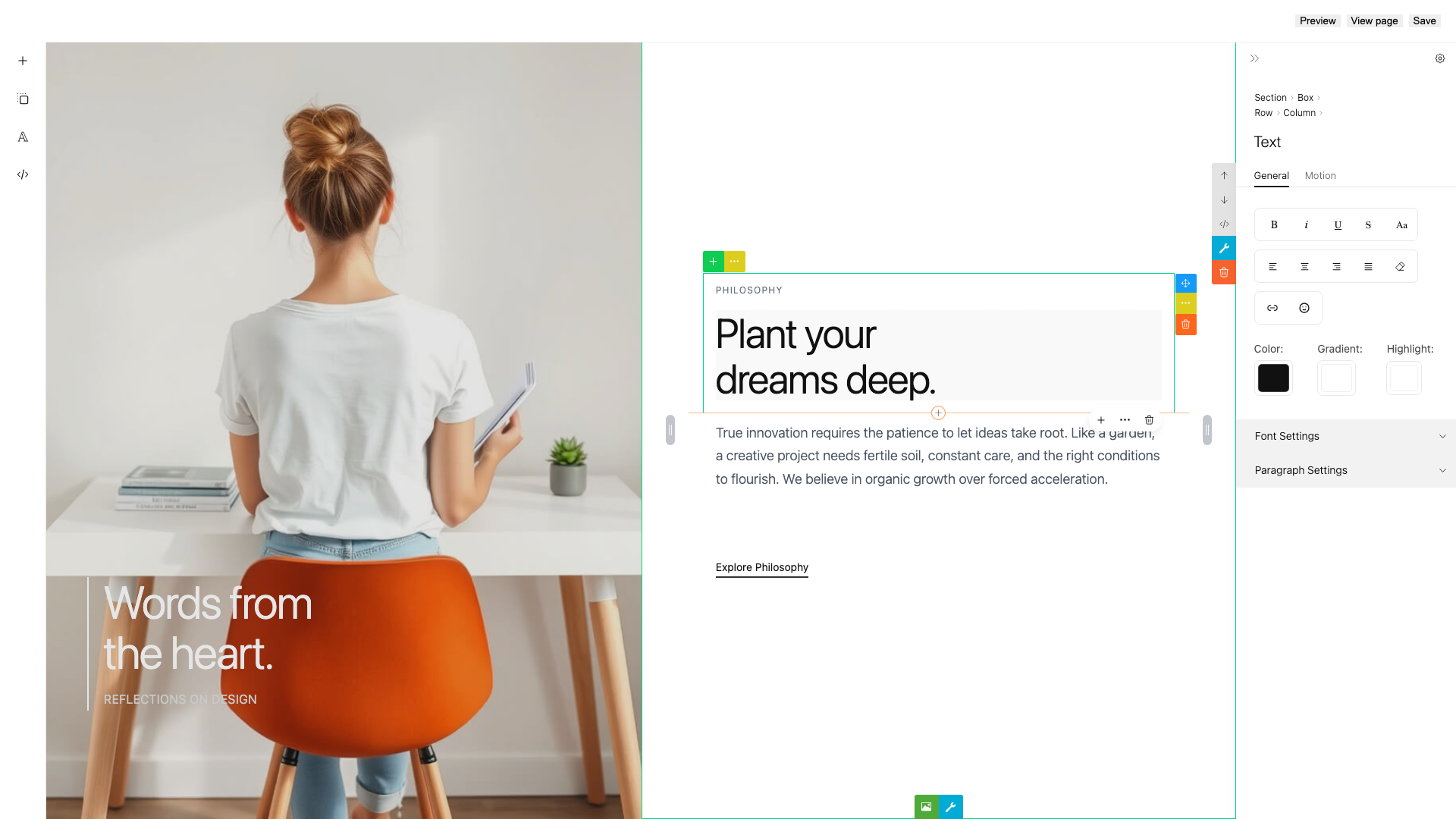
A saved page, with its styles, loads back into the editor the next time you open it.
PHP creates the data/ and uploads/ folders the first time it saves. On a server, PHP needs permission to write to your site folder.
Step 4
Show the page to visitors
The viewing page is rendered on the server, so the page is already in the HTML that browsers and search engines receive. This is good for SEO. The page needs only the runtime, not the editor.
Create view.php:
<?php
$file = __DIR__ . '/data/page.json';
$page = file_exists($file) ? json_decode(file_get_contents($file), true) : [];
?>
<!DOCTYPE html>
<html lang="en">
<head>
    <meta charset="utf-8">
    <meta name="viewport" content="width=device-width, initial-scale=1">
    <title>View</title>
    <link href="runtime/contentbox-runtime.css" rel="stylesheet">

    <!-- The saved styles: used on the page, and of each section -->
    <?= $page['mainCss'] ?? '' ?>
    <?= $page['sectionCss'] ?? '' ?>
</head>
<body>
    <!-- is-wrapper is required -->
    <div class="is-wrapper">
        <?= $page['html'] ?? '<p>No content available.</p>' ?>
    </div>

    <script src="runtime/contentbox-runtime.min.js"></script>
    <script>
        const basePath = location.href.substring(0, location.href.lastIndexOf('/'));

        // Activate interactive blocks
        const runtime = new ContentBoxRuntime({
            pluginFolder: basePath + '/assets/plugins/',
        });
        runtime.init();
    </script>
</body>
</html>
Important: the viewing container must have the is-wrapper class.
Step 5
Try it
Open http://localhost:8000/edit.php, add some sections and blocks, and click Save. Click View page to see the saved page.

The viewing page shows the saved page to visitors.
Going to production
- Saving: replace the file in
edit.php,save.phpandview.phpwith your database. Save all three parts: the content,mainCssandsectionCss. - Uploads: to use S3 or other storage, change
upload.phpto store the file there and return its URL. - Security: let only your editors open
edit.php,save.phpandupload.php, for example with your existing login check at the top of each file.view.phpis the public page.